Configure Cover, Trailer, and Missing Sheets
PLOSSYS Distribution Engine can generate a cover sheet, a trailer sheet, and a missing sheet for each print job. A cover sheet and a trailer sheet make it easier to tell individual jobs apart on paper output, and to see at a glance which job a stack of paper belongs to. A missing sheet replaces a document that could not be retrieved, so the reader gets a placeholder instead of a gap in the output. The feature is available across output channels, not only for print.
The three sheet types are configured independently of each other.
Configure Cover Sheets
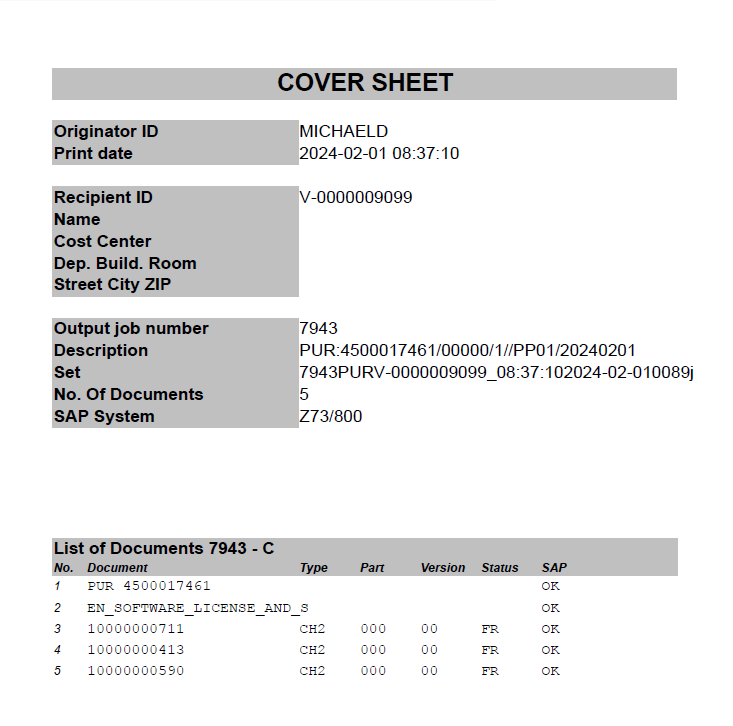
A cover sheet marks the start of a print job on paper output, so a stack of paper can be told apart from the previous job.
Prerequisites
- PLOSSYS Distribution Engine 2.1.0 or later.
- A compiled Jasper layout for the cover sheet, if used. PLOSSYS Distribution Engine ships a default layout.
Steps
-
Open, or create, the customer-specific configuration file in
SEAL_CUSTOMDIR:- Windows:
%SEAL_CUSTOMDIR%\server\dpf\conf\dpf4distribute\dpf4distribute.customer.ini - Linux:
%SEAL_CUSTOMDIR%/server/dpf/conf/dpf4distribute/dpf4distribute.customer.ini
- Windows:
-
In
dpf4distribute.customer.ini, add only the keys below that need to differ from the shippeddpf4distribute.ini, not a full copy of it. PLOSSYS Distribution Engine readsdpf4distribute.customer.iniafterdpf4distribute.iniand lets its values take precedence.Hint - path to the shipped dpf4distribute.ini
- Windows:
%DPFSRV%\conf\dpf4distribute\dpf4distribute.ini - Linux:
%DPFSRV%/conf/dpf4distribute/dpf4distribute.ini
Refer to
DPFSRV. - Windows:
-
To enable the sheet workflow, set
WantCreateSheetstoY, defaultY.WantCreateSheets = Y -
To create a cover sheet, set
PRINT_COVERtoY, defaultN.PRINT_COVER = Y -
To stamp the cover sheet, set
StampCovertoY, defaultN.StampCover = Y -
To use a different sheet layout or language, set the following keys:
-
COVER_CONFIG: basename of the cover configuration file, optional -
CoverConfigFile: full path to the cover configuration file, optional
Example - default configuration for cover sheets
COVER_CONFIG = cover_default
CoverConfigFile = %DPFSRV%/conf/dpf4distribute/%COVER_CONFIG%_%SAPLANGU_ISO%.ini
Hint - default cover sheet templates
%SAPLANGU_ISO%resolves to the SAP login language of the user who triggered the job, so the sheet language follows the user's SAP session language.Ready-made templates ship for German, English, French and Italian.
-
-
Changing the sheet content itself, its fields and layout, is a project-specific customization, not a configuration step. It needs a matching, custom-built Jasper layout.
Hint - no automatic customer override
PLOSSYS Distribution Engine does not automatically look for a customer-specific version of the cover sheet configuration file. To use your own, set
CoverConfigFileto its full path.
Validation
-
Set
PRINT_COVERtoYfor a test job, or in the job's configuration. -
Trigger the job in SAP.
-
Check that the resulting output includes a cover sheet before the distributed documents. For example:
-
Check that the sheet language matches the SAP login language used to trigger the job.

Configure Trailer Sheets
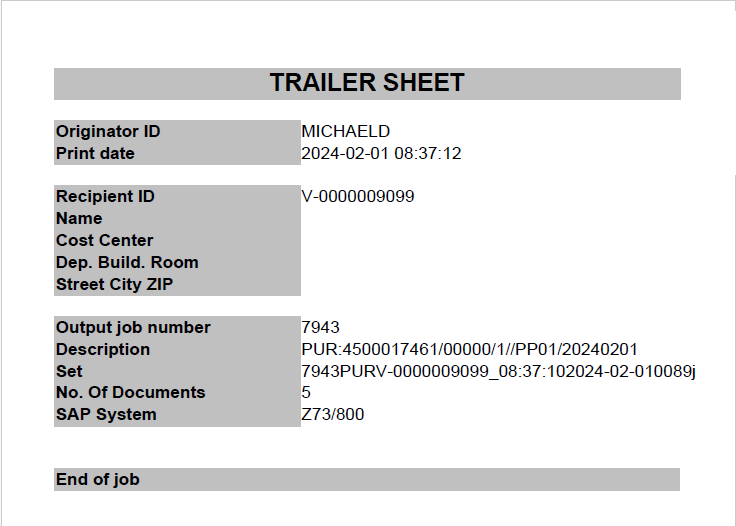
A trailer sheet marks the end of a print job on paper output, so a stack of paper can be told apart from the next job.
Prerequisites
- PLOSSYS Distribution Engine 2.1.0 or later.
- A compiled Jasper layout for the trailer sheet, if used. PLOSSYS Distribution Engine ships a default layout.
Steps
-
Open, or create, the customer-specific configuration file in
SEAL_CUSTOMDIR:- Windows:
%SEAL_CUSTOMDIR%\server\dpf\conf\dpf4distribute\dpf4distribute.customer.ini - Linux:
%SEAL_CUSTOMDIR%/server/dpf/conf/dpf4distribute/dpf4distribute.customer.ini
- Windows:
-
In
dpf4distribute.customer.ini, add only the keys below that need to differ from the shippeddpf4distribute.ini, not a full copy of it. PLOSSYS Distribution Engine readsdpf4distribute.customer.iniafterdpf4distribute.iniand lets its values take precedence.Hint - path to the shipped dpf4distribute.ini
- Windows:
%DPFSRV%\conf\dpf4distribute\dpf4distribute.ini - Linux:
%DPFSRV%/conf/dpf4distribute/dpf4distribute.ini
Refer to
DPFSRV. - Windows:
-
To enable the sheet workflow, set
WantCreateSheetstoY, defaultY.WantCreateSheets = Y -
To create a trailer sheet, set
PRINT_TRAILERtoY, defaultN.PRINT_TRAILER = Y -
To stamp the trailer sheet, set
StampTrailertoY, defaultN.StampTrailer = Y -
To use a different sheet layout or language, set the following keys:
-
TRAILER_CONFIG: basename of the trailer sheet configuration file, optional -
TrailerConfigFile: full path to the trailer sheet configuration file, optional
Example - default configuration for trailer sheets
TRAILER_CONFIG = trailer_default
TrailerConfigFile = %DPFSRV%/conf/dpf4distribute/%TRAILER_CONFIG%_%SAPLANGU_ISO%.ini
Hint - default trailer sheet templates
%SAPLANGU_ISO%resolves to the SAP login language of the user who triggered the job, so the sheet language follows the user's SAP session language.Ready-made templates ship for German, English, French and Italian.
-
-
Changing the sheet content itself, its fields and layout, is a project-specific customization, not a configuration step. It needs a matching, custom-built Jasper layout.
Hint - no automatic customer override
PLOSSYS Distribution Engine does not automatically look for a customer-specific version of the trailer sheet configuration file. To use your own, set
TrailerConfigFileto its full path.
Validation
-
Set
PRINT_TRAILERtoYfor a test job, or in the job's configuration. -
Trigger the job in SAP.
-
Check that the resulting output includes a trailer sheet after the distributed documents. For example:
-
Check that the sheet language matches the SAP login language used to trigger the job.

Configure Missing Sheets
A missing sheet replaces a document that could not be retrieved, so the reader gets a placeholder instead of a silent gap in the output. Missing sheet creation is active by default. No key needs to be set for the standard case, refer to Which Documents Get a Missing Sheet.
Hint - disable missing sheets
For how to disable the creation of missing sheets, refer to PRINT_MISSING.
Prerequisites
- PLOSSYS Distribution Engine 2.2.0 or later.
- A compiled Jasper layout for the missing sheet, if used. PLOSSYS Distribution Engine ships a default layout.
Steps
To change the sheet layout or language, or activate stamping for the missing sheets, follow these steps:
-
Open, or create, the customer-specific configuration file in
SEAL_CUSTOMDIR:- Windows:
%SEAL_CUSTOMDIR%\server\dpf\conf\dpf4distribute\dpf4distribute.customer.ini - Linux:
%SEAL_CUSTOMDIR%/server/dpf/conf/dpf4distribute/dpf4distribute.customer.ini
- Windows:
-
In
dpf4distribute.customer.ini, add only the keys below that need to differ from the shippeddpf4distribute.ini, not a full copy of it. PLOSSYS Distribution Engine readsdpf4distribute.customer.iniafterdpf4distribute.iniand lets its values take precedence.Hint - path to the shipped dpf4distribute.ini
- Windows:
%DPFSRV%\conf\dpf4distribute\dpf4distribute.ini - Linux:
%DPFSRV%/conf/dpf4distribute/dpf4distribute.ini
Refer to
DPFSRV. - Windows:
-
To stamp the missing sheet, set
StampMissingtoY, defaultN.StampMissing = Y -
To use a different sheet layout or language, set the following keys:
-
MISSING_CONFIG: basename of the missing sheet configuration file, optional -
MissingConfigFile: full path to the missing sheet configuration file, optional
Example - default configuration for missing sheets
MISSING_CONFIG = missing_default
MissingConfigFile = %DPFSRV%/conf/dpf4distribute/%MISSING_CONFIG%_%SAPLANGU_ISO%.ini
Hint - default missing sheet templates
%SAPLANGU_ISO%resolves to the SAP login language of the user who triggered the job, so the sheet language follows the user's SAP session language.Ready-made templates ship for German, English, French and Italian.
-
-
Changing the sheet content itself, its fields and layout, is a project-specific customization, not a configuration step. It needs a matching, custom-built Jasper layout.
Hint - no automatic customer override
PLOSSYS Distribution Engine does not automatically look for a customer-specific version of the missing sheet configuration file. To use your own, set
MissingConfigFileto its full path.
Validation
-
Trigger a test job with a document whose
CreateErrSheetRLI column is set tomissing. -
Check that PLOSSYS Distribution Engine distributes a missing sheet in place of that document, showing the
TEXT_STATUS_MISSINGtext.
Background Information
Porting from PLOSSYS 4
Most variable names were kept the same as in PLOSSYS 4's rlistsap.cfg, to simplify porting existing cover/trailer sheet layouts. One exception: PLOSSYS 4 used a variable named SET_SHEETCOUNT that, contrary to what its name suggests, held the number of documents rather than the number of sheets in the job. To avoid this confusion, PLOSSYS Distribution Engine replaces it with DOCUMENTCOUNT.
For more on the relationship between PLOSSYS Distribution Engine and PLOSSYS 4, refer to Coexistence with PLOSSYS 4.
Which Documents Get a Missing Sheet
PLOSSYS Distribution Engine creates a missing sheet for every RLI line whose CreateErrSheet column is not empty. The missing sheet takes the place of the affected document itself, on the same RLI line. The SAP checkout step sets CreateErrSheet automatically. So this already works without any configuration for the standard case.
For a project-specific RLI column or filter logic the following keys are available:
-
CreateMissingSheetsRlicFilter:RLI column checked to decide which lines get a missing sheet, optional, default
CreateErrSheet. -
CreateMissingSheetsFilterOperator:comparison operator for the filter, optional, default
ne. -
CreateMissingSheetsFilterValue:value compared against, optional, default empty.
Distinguish "Document Missing" from "Error"
The SAP checkout step sets it on the RLI line when it cannot retrieve a document from SAP, to missing if the document itself could not be found, or to error together with the underlying error message in ErrReason for other checkout failures.
The missing sheet then shows one of two status texts, depending on that value:
-
CreateErrSheet = missing:shows the text configured as
TEXT_STATUS_MISSINGin the missing sheet configuration file, for exampleDoc. missing!. -
Any other non-empty value:
shows the text configured as
TEXT_STATUS_FAILED, for exampleError!, unlessErrReasonis already set, for example to the checkout error message, which is kept unchanged.